How to Turn Images Into Short Videos With Grok Imagine on GoEnhance AI
Learn how to use Grok Imagine on GoEnhance AI to turn images into short videos with focused prompts, camera motion,
Press Release Disclaimer: This is a press release distributed through the XPR Media network. It has not been independently verified by our newsroom.
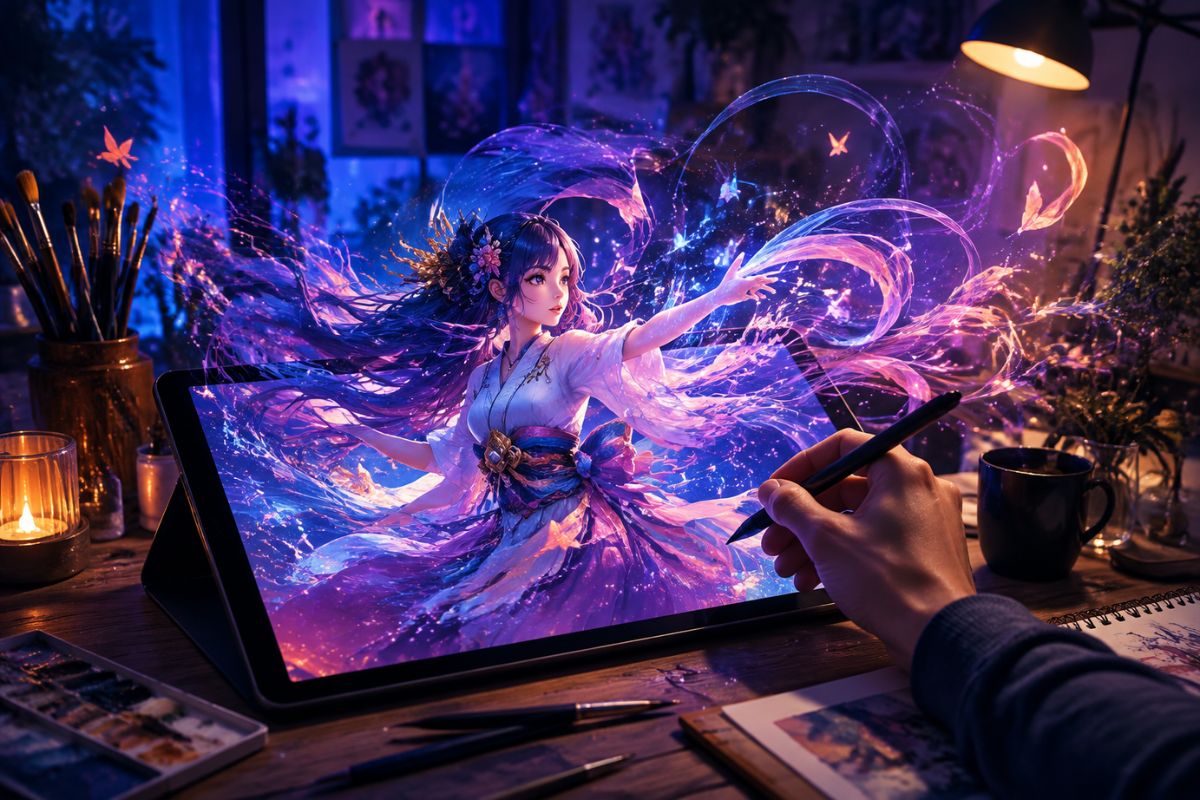

Learn how to use Grok Imagine on GoEnhance AI to turn images into short videos with focused prompts, camera motion, creative styles, and simple editing.
SHERIDAN, WY, UNITED STATES, August 23, 2026 /EINPresswire.com/ — Creating a short video from a still image no longer requires a full animation setup. With the right source image, a focused prompt, and a clear motion idea, creators can develop product teasers, character clips, campaign visuals, and social content in a few steps.
GoEnhance AI is an online AI tools platform for generating, editing, transforming, and enhancing images and videos. Its browser-based tools are designed for creators, marketers, designers, educators, agencies, and small production teams that want to develop visual content without managing a complicated traditional workflow.
One of the platform’s image-to-video workflows gives users access to Grok Imagine. The model can use an existing image as a visual reference and add movement, camera direction, lighting changes, atmosphere, and other scene details. Grok Imagine Spicy can also be used when a project calls for a bolder, more unusual, or experimental visual direction.
This guide explains how to create a stronger image-to-video result on GoEnhance AI, from choosing the source image to reviewing and editing the final clip.
1. Choose a Clear Source Image
The source image has a major effect on the generated video. Begin with an image that has one clear subject, readable lighting, and enough visible detail for the model to interpret.
Suitable source images include:
– Product photography
– Character illustrations
– Fashion images
– Campaign posters
– Event graphics
– Food and beverage photos
– Lifestyle or landscape scenes
Avoid images where the main subject is hidden behind objects, cropped too tightly, or surrounded by heavy visual clutter. A product should remain easy to identify, and a character should have a readable face, pose, and silhouette.
If the image contains important text, consider adding that text after generation. Prices, dates, headlines, and calls to action are usually easier to control in a video editor than inside an AI-generated frame.
2. Decide What the Video Needs to Communicate
Before writing a prompt, define the job of the video. A short clip might introduce a product, create anticipation for a launch, animate a poster, reveal a character, or provide a visual draft for a client.
The purpose determines the motion. A product advertisement may need a slow camera push and controlled lighting. A social clip may benefit from a faster opening action. A website background may work better with subtle movement that does not distract from the page.
Write down three decisions before generating:
– What is the main subject?
– What should happen during the clip?
– What mood should the viewer feel?
These decisions help keep the prompt focused and make the result easier to evaluate.
3. Write a Motion-Focused Prompt
An effective prompt describes movement rather than only appearance. A simple structure is:
Subject + main action + camera movement + environment + mood
For a product image, you could write:
Preserve the original perfume bottle, label, colors, and proportions. The camera slowly moves closer while warm light travels across the glass. Fine mist drifts through the background. Create a refined luxury advertising mood.
For a character image, try:
Preserve the original character design, face, hairstyle, clothing, and colors. The character slowly looks toward the camera while the hair and coat move gently in the wind. Add soft glowing particles in the background and use a slow camera push.
The prompt should usually contain one primary action and one main camera movement. Asking for running, jumping, costume changes, rapid lighting changes, and several camera moves at once can make a short clip less consistent.
4. Protect the Important Details
Tell the model what must stay unchanged. This is especially important for products, packaging, characters, logos, and recognizable artwork.
Useful instructions include:
– Preserve the original product shape and proportions.
– Keep the label and packaging unchanged.
– Maintain the original character design.
– Preserve the face, clothing, and accessories.
– Keep the original color palette and art style.
– Do not add extra objects or redesign the subject.
The more specific the protected elements are, the easier it is to compare the generated video with the original image.
5. Use Grok Imagine for the First Version
Grok Imagine is a practical starting point for most image-to-video projects. It can be used for product teasers, ecommerce content, social clips, character animation, campaign concepts, lifestyle visuals, and creative previsualization.
Keep the first version simple. A perfume bottle might receive a slow camera movement, soft reflections, and light mist. A food image might use steam, condensation, or a subtle shift in focus. A fashion image could include fabric movement, gentle side lighting, and a limited camera orbit.
The purpose of the first generation is to establish a usable direction. Once the main subject and motion are working, you can create more expressive variations.
6. Try Grok Imagine Spicy for a More Experimental Direction
Grok Imagine Spicy can be useful when a project needs a less conventional treatment. It may suit surreal environments, unusual lighting, expressive character concepts, alternative fashion visuals, or bolder social content.
Start with the same source image and change only the creative direction. For example, a clean product scene can be transformed into an editorial visual with dramatic red reflections, flowing light, or a more unusual atmosphere.
Keep the subject recognizable unless a deliberate transformation is part of the concept. Experimental styling works better when the prompt still defines the main subject, motion, and mood clearly.
7. Compare Different Versions
One source image can support several video directions. Compare the results based on the purpose of the project, not just the amount of visual change.
A clean commercial version may be best for an ecommerce page. A cinematic version may work as a campaign teaser. An experimental version may attract attention in a social feed or help a creative team explore a new concept.
When comparing versions, check whether:
– The subject remains recognizable.
– The motion supports the message.
– The opening moment is clear.
– The camera movement feels natural.
– Important product or character details remain stable.
– The visual mood matches the intended audience.
8. Choose the Final Format Before Editing
Decide whether the video will be vertical, square, or horizontal before preparing the final version. Keep important subjects away from the edges when the clip may be cropped for different platforms.
Vertical videos usually need a clear central subject and a strong first second. Square videos should leave space around important details. Horizontal videos can support wider environments and more lateral camera movement.
The AI video generator result can be adjusted later, but planning the format early helps avoid losing the main subject during cropping.
9. Improve Weak Results With Small Changes
When a result is not usable, identify the main problem instead of rewriting the entire prompt. Common issues include product distortion, inconsistent faces, excessive camera movement, late action, weak framing, distracting backgrounds, or too many simultaneous actions.
Change one instruction at a time. If the camera moves too quickly, replace “dramatic camera orbit” with “very slow and limited camera movement.” If the product changes shape, repeat the instruction to preserve its form, label, colors, and proportions.
Small revisions make it easier to understand which instruction improves the result.
10. Finish the Clip With Basic Editing
AI-generated video is often more useful after a short editing pass. Trim weak frames, adjust the speed, crop for the target platform, and add captions, music, sound effects, branding, or a call to action.
Prices, dates, headlines, and promotional copy are usually more reliable when added in an editor rather than generated inside the video. A final review should also check visual consistency, source-image rights, consent, brand suitability, and platform requirements.
Final Thoughts
Grok Imagine on GoEnhance AI gives creators a practical way to turn existing images into short motion content. The strongest results usually come from a clear source image, one main action, a specific camera direction, and precise instructions about what must remain unchanged.
Grok Imagine is a useful starting point for commercial and everyday creative work, while Grok Imagine Spicy can help explore more expressive variations. By testing both directions and finishing the result with basic editing, creators can turn a single image into multiple visual concepts for marketing, social media, ecommerce, entertainment, and storytelling.
About GoEnhance AI
GoEnhance AI is an online AI tools platform for image and video generation, editing, transformation, and enhancement. It helps creators, marketers, educators, designers, agencies, and production teams build visual content from text, images, and existing footage through browser-based creative workflows.
Irwin
MewX LLC
+1 307-533-7137
email us here
Visit us on social media:
LinkedIn
YouTube
X
Legal Disclaimer:
EIN Presswire provides this news content “as is” without warranty of any kind. We do not accept any responsibility or liability
for the accuracy, content, images, videos, licenses, completeness, legality, or reliability of the information contained in this
article. If you have any complaints or copyright issues related to this article, kindly contact the author above.

Media gallery